
Your first meeting
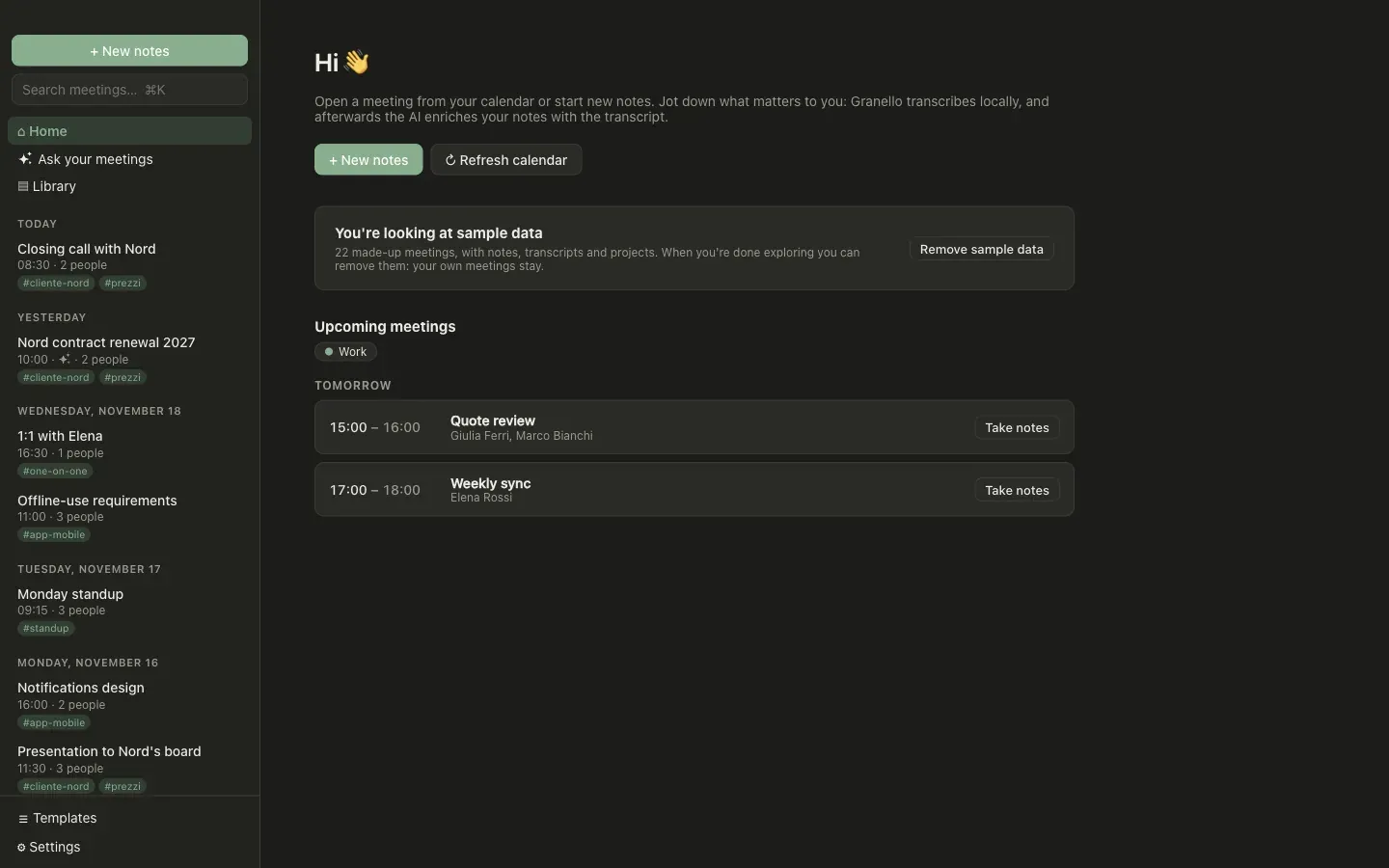
The Home screen shows what is still missing after the first launch. There are three things to set up, all in Settings.
Set up
Section titled “Set up”- Local transcription: download a whisper model.
large-v3-turbo-q5_0(547 MB) is the recommended one on Apple Silicon;baseis enough for a quick try. - AI models: paste the API key of your provider, or add a local provider. The key goes to the macOS Keychain. See local models to keep everything on your Mac.
- Calendar (optional): add a calendar by pasting its secret iCal address. Upcoming events then appear on the Home screen, with one click to open their notes.
To look around first, Load sample data on the Home screen fills the app with 22 made-up meetings. They are removed with one click and never touch your own meetings.
Record
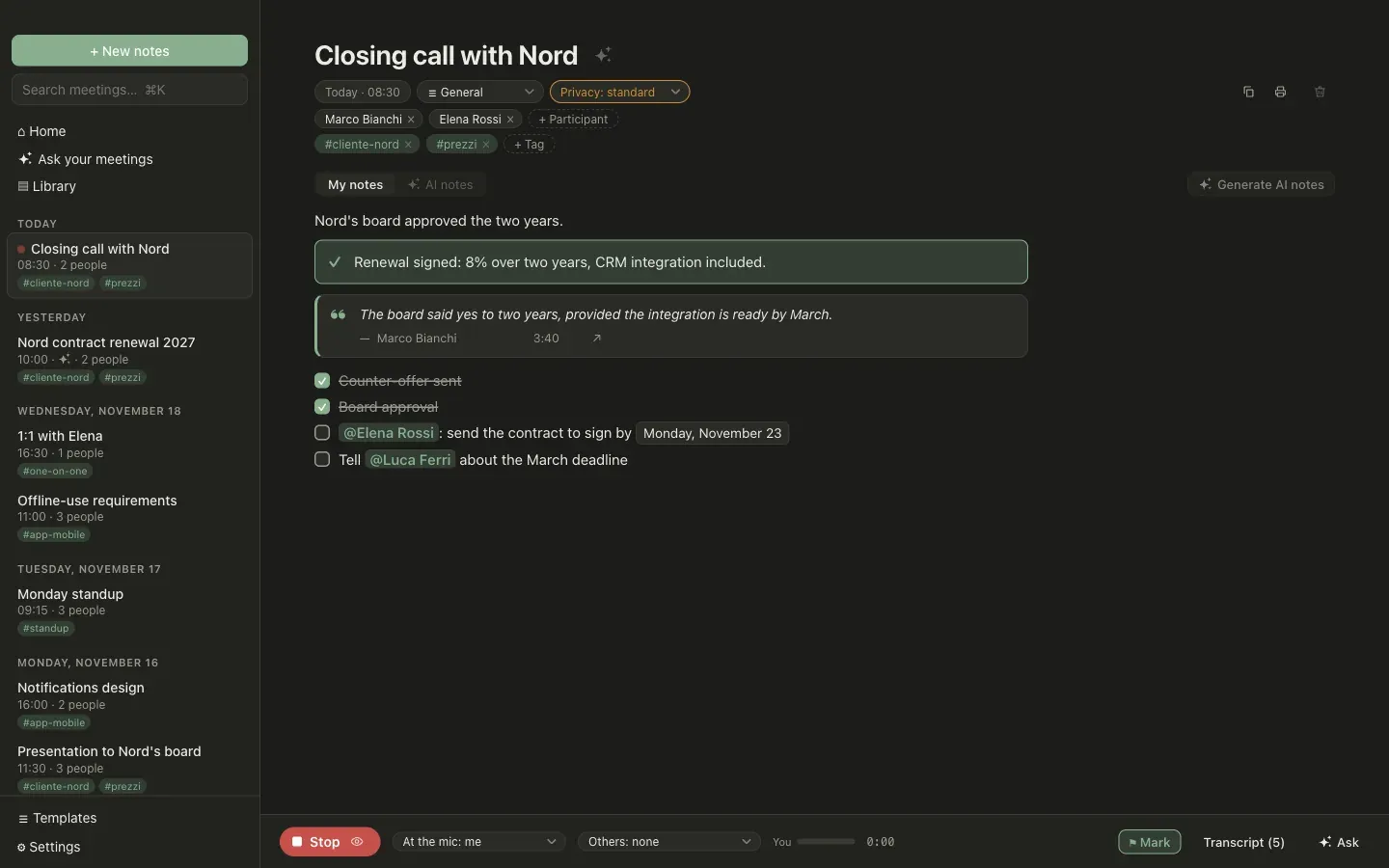
Section titled “Record”- Press New notes (⌘N), or Take notes on a calendar event.
- Choose the meeting’s Privacy level in the header, if it should not be the standard one. See privacy levels.
- Press Record. The first time, macOS asks for permission to use the microphone.
- Write the few things that matter to you. Press ⚑ Mark (⇧⌘M) when something important is said: the note keeps the minute.
- Press Stop.
Get the notes
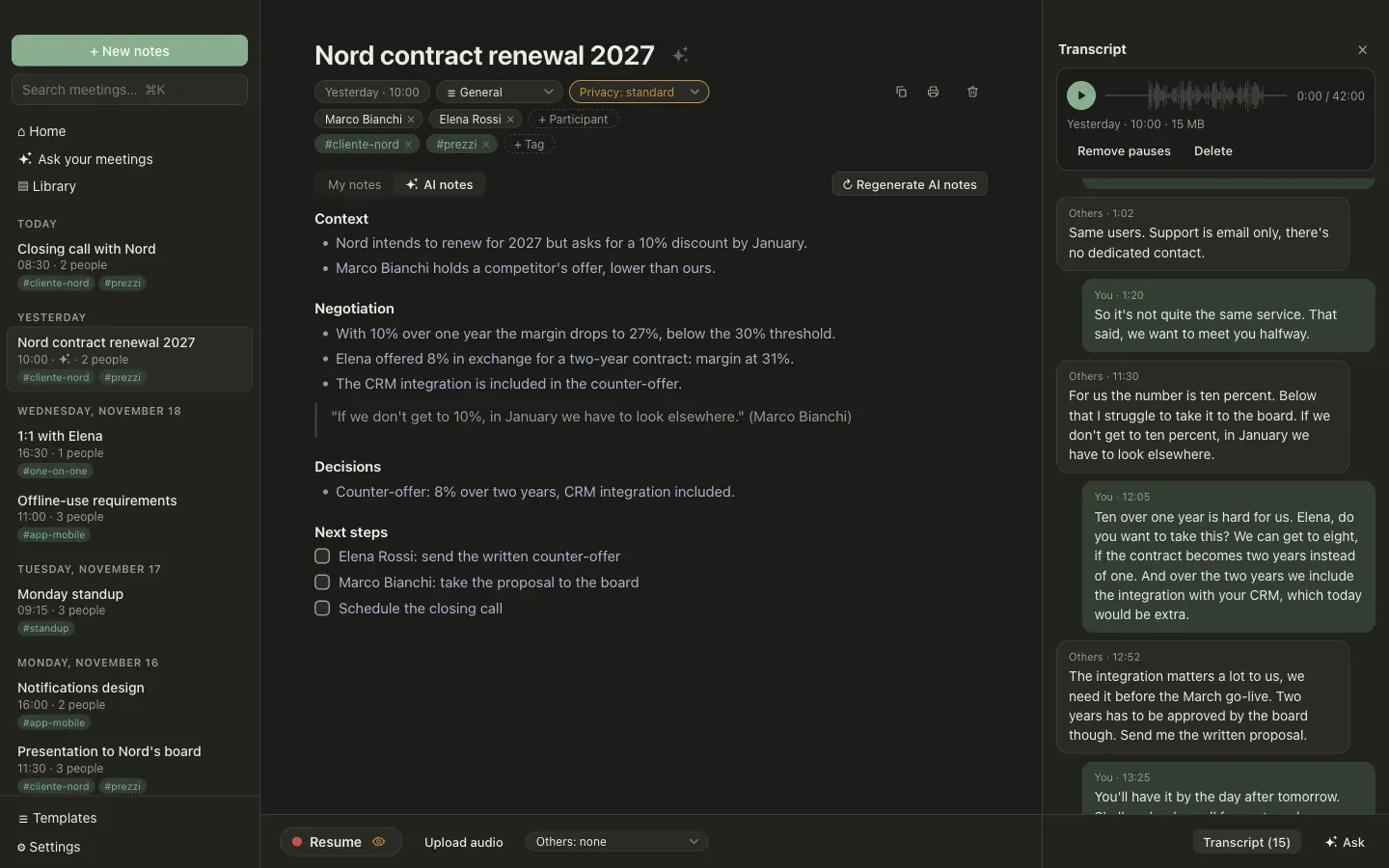
Section titled “Get the notes”Open Transcript to read what was said, with who spoke and the minute. Then press Generate AI notes: the model merges your notes and the transcript into complete notes, following the meeting’s template. The AI notes stay editable, and your own notes are kept in their tab.
Next: how privacy works.